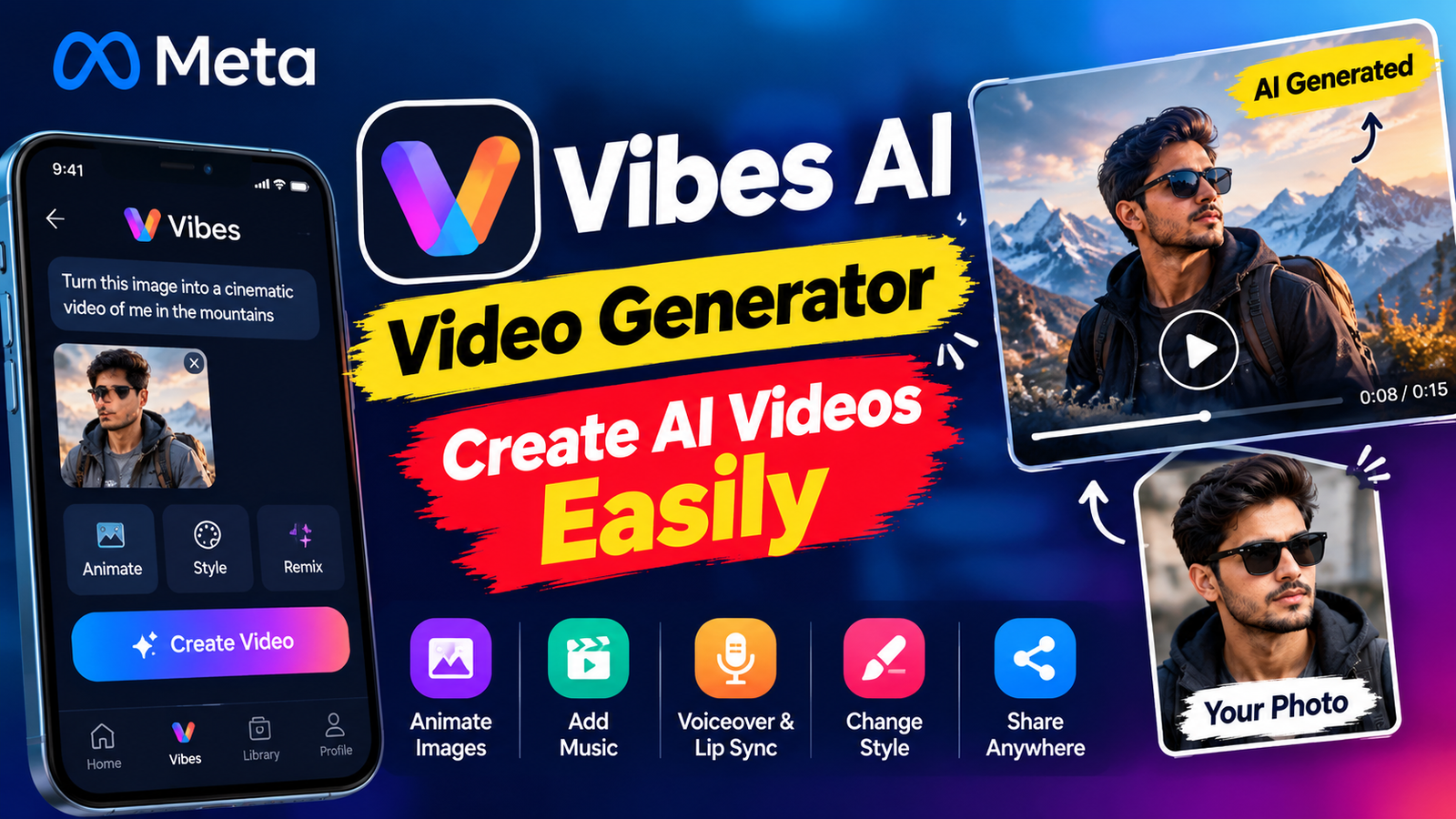

AI video generation is becoming easier for everyday creators, and Vibes AI is one of Meta’s newer tools for creating, editing, remixing and sharing short-form AI-generated videos. Instead of needing traditional video-editing software, users can start with an idea, describe what they want, animate an image, change a video’s style or remix existing AI content.
Vibes is built around experimentation. You can create a video from an idea, add visuals, experiment with different styles, include music or voice elements, and then share the finished result.
What Is Vibes AI?
Vibes is Meta’s AI video creation experience available through the Meta AI ecosystem. It is designed specifically around short-form AI-generated videos and combines creation, editing, remixing and sharing in one experience.
You can use it to:
- Create AI videos from an idea or prompt
- Animate your own images
- Add yourself or friends as characters
- Remix existing AI videos
- Change visual styles
- Transform scenes and characters
- Add music
- Add voiceover
- Create lip-synced dialogue
- Add text
- Experiment with presets and custom animation instructions
This makes Vibes useful for people who want to experiment with AI video without learning complicated editing software first.
What Can You Create With Vibes AI?
Vibes is not limited to one particular type of video. You can experiment with different creative concepts depending on the tools available to your account.
For example, you could create:
Cinematic AI videos
Create a dramatic scene with a specific camera movement, lighting style and environment.
Character videos
Use an image as a starting point and bring the character to life through animation.
Social media videos
Create short visual content designed for sharing on social platforms.
AI story scenes
Describe a character, location and action and experiment with turning the idea into a visual sequence.
Stylized videos
Use editing and restyling instructions to change the appearance or atmosphere of a creation.
Vibes AI Video Formats
One thing to understand is that Vibes is focused on short-form video, rather than being positioned as a traditional long-form video editor. Meta describes Vibes specifically as a place to create and share short-form AI-generated videos.
The exact output options can depend on the current version of Vibes, the device or account, and the features available in your region.
Vertical Videos
Vertical content is particularly useful for social media because Vibes creations can be shared to platforms such as Instagram and Facebook Stories and Reels. Meta specifically mentions cross-posting Vibes creations to Stories and Reels.
Short-Form Videos
Vibes is designed around short-form AI video rather than long movies. This makes it more suitable for quick visual concepts, social clips, character experiments and short cinematic sequences.
Image-Based Animation
You can also start with an existing image and animate it instead of creating everything from scratch. Meta specifically lists the ability to animate your own images.
How Many Seconds of Video Can Vibes AI Generate?
This is one area where you should be careful with information found online.
Meta currently describes Vibes as a short-form AI video creation experience, but its public Vibes information does not state one universal maximum duration such as 10, 15 or 30 seconds.
Therefore, the available duration can depend on the specific creation tool and version you’re using.
You may see different limits as Meta continues updating Vibes and its underlying video-generation models.
So if you’re planning a longer AI sequence, it is better to create it as multiple short scenes and combine those scenes afterward rather than assuming that one prompt will generate an entire long video.
Can You Extend an AI Video in Vibes?
Vibes supports creating, editing and remixing AI video, but Meta’s current public Vibes documentation does not clearly advertise a universal “Extend Video” duration or button with a fixed number of additional seconds.
This is important because different Meta AI video features can have different capabilities.
For example, Meta previously introduced a separate AI video-editing feature that could transform 10 seconds of an existing video using preset prompts. That feature is related to Meta’s broader AI video tools, but it should not automatically be treated as the maximum or standard Vibes generation length.
If an Extend option is available in the version of Vibes you’re using, its available duration should be checked directly in the creation interface.
Can Vibes AI Do Lip Sync?
Yes. This is one of the features Meta specifically mentions for Vibes.
Vibes can add lip-synced dialogue and music, allowing characters to appear to speak along with generated dialogue. Meta also mentions voiceover and text as additional ways to add expression to creations.
This can be useful for:
- Talking AI characters
- Short dialogue scenes
- Storytelling videos
- Character introductions
- Social media clips
- AI presenter-style content
The quality of lip synchronization can vary depending on the character, movement, audio and generation.
Can You Add Voice and Music?
Yes. Vibes supports creative audio elements including music, voiceover and lip-synced dialogue.
This means you don’t necessarily have to create a silent AI video and add every audio element separately in another editor.
For example, a creator could create a character scene and then add dialogue, music and text as part of the creative process.
Can You Use Your Own Photo?
Yes.
Vibes allows users to animate their own images, which can be useful when you already have a character or visual that you want to bring to life. Meta also says users can add themselves and friends to creations, with controls over when their likeness is used.
If you’re using another person’s photo, make sure you have permission to use their likeness.
Can You Change the Style of a Video?
Yes. Vibes includes editing and restyling capabilities.
Meta describes options for using presets and custom editing and animation prompts to transform characters, reimagine scenes and experiment with different creative directions.
For example, you can experiment with:
- Cinematic styles
- Different environments
- Character transformations
- Lighting changes
- Visual effects
- Different animation directions
This is especially useful when the original idea is good but the visual style needs to be changed.
Can You Remix Existing AI Videos?
Yes. Remixing is one of the core ideas behind Vibes.
Meta describes Vibes as a place where users can discover AI videos, create their own versions and remix existing creations. You can add new visuals, change styles and add music to create your own variation.
This gives creators a way to start from an existing concept instead of always beginning with a completely blank prompt.
What Video Quality Does Vibes AI Support?
Meta’s public Vibes information currently focuses on the creative features rather than publishing a single guaranteed output specification such as 1080p, 4K or a fixed frame rate for every Vibes generation.
Because of that, it would be inaccurate to promise that every Vibes video is always generated at a particular resolution.
The final quality can depend on the specific generation feature, model, account and current version of the service.
For creators, the more important thing is to review the generated result for:
- Facial consistency
- Hand and finger accuracy
- Character movement
- Background consistency
- Text accuracy
- Lighting
- Motion quality
- Audio synchronization
How to Create an AI Video With Vibes
Step 1: Start With an Idea
First decide what you want the video to show.
For example:
A cinematic shot of a man walking through a desert landscape at sunset, realistic camera movement and warm natural lighting.
Keep the main idea clear.
Step 2: Add a Reference Image if Needed
If your creation requires a particular character or image, you can use your own image as a starting point.
This is especially useful for character animation.
Step 3: Describe the Action
Tell the AI what should happen.
Instead of simply saying:
Man in desert.
Try:
A man slowly walks across the desert while the camera tracks backward, warm sunlight behind him and dust moving naturally through the scene.
Step 4: Choose a Style
You can experiment with the available presets or provide additional instructions about the visual style.
For example:
- Photorealistic
- Cinematic
- Dramatic
- Fantasy
- Stylized
- Action-movie look
The available presets can change as Meta updates the service.
Step 5: Generate and Review
After generating the video, watch it carefully.
AI video can sometimes produce unexpected results, especially with faces, hands, clothing and complicated movements.
If something looks wrong, modify the instructions and generate another version.
Tips for Better Vibes AI Videos
Keep Prompts Clear
Don’t put unnecessary information into every prompt. Describe the subject, action, environment and camera direction clearly.
Use Scene-by-Scene Prompts
If you’re creating a longer story, divide it into multiple scenes.
For example:
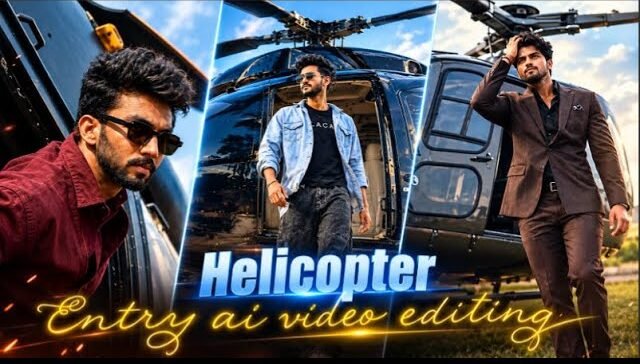
Scene 1: Character exits a helicopter.
Scene 2: Character walks across the location.
Scene 3: Character approaches a gate.
Scene 4: Action sequence begins.
You can then combine the generated clips into one finished video.
Keep Character Details Consistent
If the same character appears in multiple clips, use the same reference image and repeat the important identity and clothing instructions.
Keep the Location Consistent
If you’re creating several scenes in the same environment, mention the same location details in each prompt.
This can help reduce unwanted background changes.
Review Lip Sync
For dialogue scenes, check whether the mouth movement matches the generated speech. AI-generated lip synchronization can vary depending on the scene.
Don’t Depend on One Generation
AI video generation is still an iterative process. Creating several versions can give you more usable footage than trying to get everything perfect with one generation.
Is Vibes AI Free?
Meta currently presents Vibes as a way to create AI videos, and its official Vibes page uses the phrase “Generate Free AI Videos With Vibes.” However, availability, limits and specific creation features can vary by account, region and the current version of the service.
So it is better to think of Vibes as offering free AI video creation rather than assuming that every feature has unlimited free usage.
Final Thoughts
Vibes AI Video Generator is designed to make short-form AI video creation more accessible. You can start with an idea, animate your own images, remix existing creations, change styles and add elements such as music, voiceover, text and lip-synced dialogue.
Create Video
For better results, don’t try to create an entire long video in one generation. Instead, break your idea into short scenes, maintain the same reference image and character details, and then combine the successful clips into a complete video.
That approach gives you much more control over character consistency, camera movement, scene continuity and overall video quality.