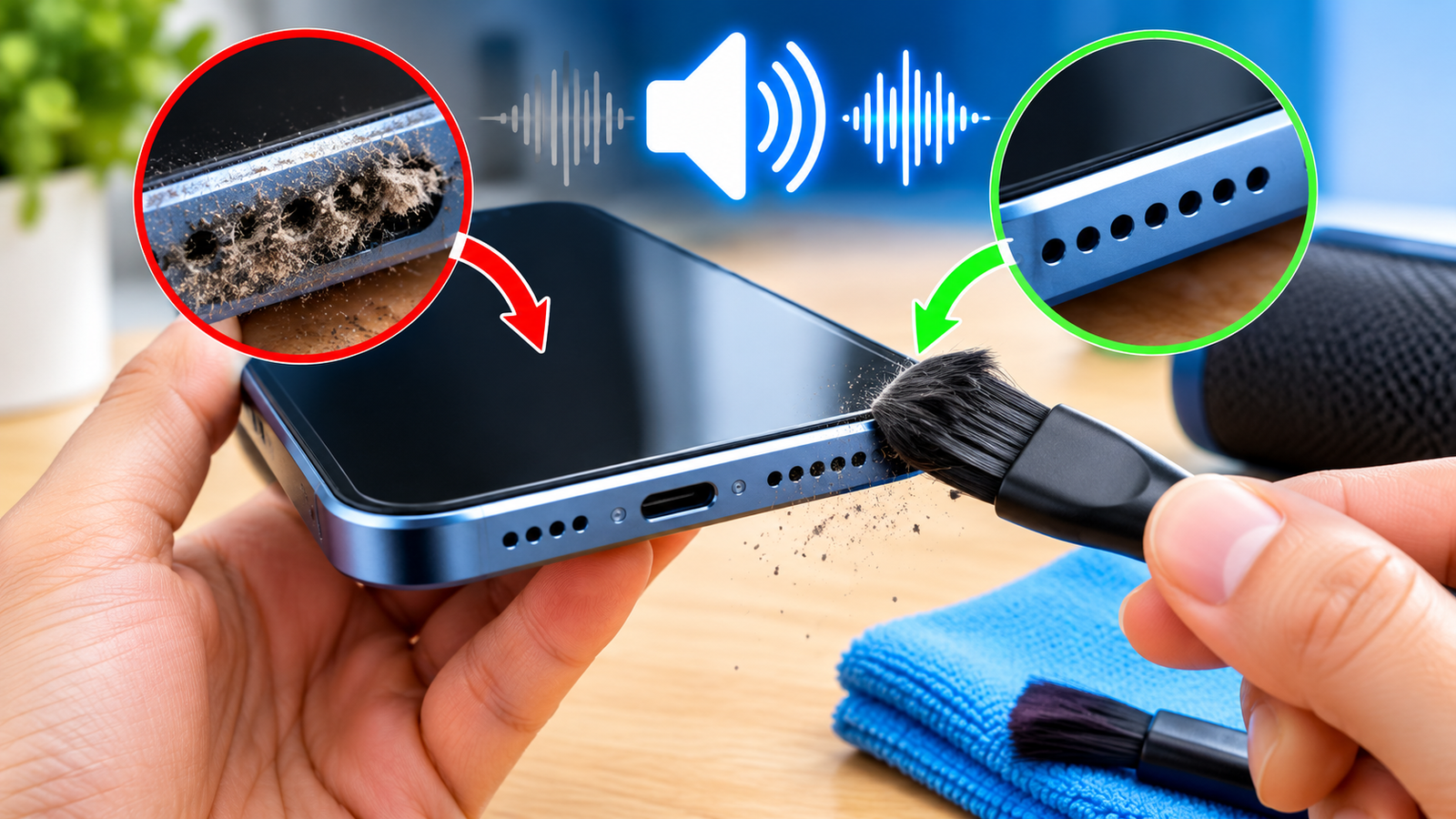

Dust, dirt, and tiny particles can collect around your phone, laptop, tablet, or Bluetooth speaker and gradually affect sound quality. You may notice low volume, muffled audio, crackling sounds, or unclear vocals even when the volume is turned up.
The good news is that you can often improve the sound by carefully cleaning the speaker area without opening the device. This guide explains how to identify dust-related speaker problems and clean your speaker safely.
Why Does Dust Affect Speaker Sound?
Speakers use small openings or grilles to move sound toward you. When dust builds up around these openings, it can partially block the sound.
Common symptoms include:
- Low or reduced volume
- Muffled or unclear sound
- Weak bass
- Crackling at higher volume
- One speaker sounding quieter than another
- Sound becoming less clear over time
However, not every speaker problem is caused by dust. Software problems, water damage, damaged speaker components, or hardware faults can produce similar symptoms.
Before Cleaning Your Speaker
Before you start, turn off the device and disconnect it from its charger or other accessories.
You should also avoid putting liquids directly onto the speaker grille. Water or cleaning liquid can enter the device and cause additional damage.
For most devices, you only need a few simple items:
- A clean, soft, dry brush
- A microfiber cloth
- A small amount of patience
- A well-lit area where you can clearly see the speaker openings
Avoid using sharp objects such as needles, pins, SIM tools, or metal wires.
Step 1: Check the Speaker for Visible Dust
First, inspect the speaker grille under good lighting.
Look for:
- Dust particles
- Lint
- Pocket debris
- Dirt around the speaker holes
- Material covering the grille
Do not immediately push the dirt deeper into the openings. The goal is to remove particles from the surface rather than force them inside the device.
Step 2: Use a Soft Dry Brush
A soft-bristled brush is one of the safer options for cleaning a speaker grille.
Hold the device so that loose dust can fall away from the speaker opening. Gently brush across the grille using light strokes.
Do not press the brush hard against the speaker.
Move the brush in different directions to loosen dust that may be trapped between the openings.
After several gentle passes, check the grille again.
Step 3: Clean the Surrounding Area
Use a dry microfiber cloth to clean the area around the speaker.
This helps remove dust and dirt from the phone or device frame that could otherwise move back toward the speaker.
Be especially careful around small openings, buttons, microphones, and charging ports.
Step 4: Avoid Pouring Liquid on the Speaker
Never pour water, alcohol, screen cleaner, or another liquid directly onto the speaker.
Even if a device has some level of water resistance, that does not mean liquid should be intentionally introduced into its speaker openings.
If you need to clean the exterior, lightly dampen a microfiber cloth and make sure it is not wet enough to release liquid. Keep moisture away from openings.
Step 5: Be Careful With Compressed Air
Compressed air can seem like an easy way to remove dust, but using strong air pressure directly against a tiny speaker opening may push debris deeper into the device or potentially stress delicate components.
If you choose to use air, avoid placing the nozzle directly against the speaker grille and use only gentle, controlled airflow.
For a phone or small electronic device, a soft brush is generally easier to control.
Step 6: Test the Speaker After Cleaning
Once the speaker area is clean, turn the device back on and play some normal audio.
Test:
- Low volume
- Medium volume
- Higher volume
- Music
- Voice recordings
- Video dialogue
Listen for improvements in clarity and volume.
If the sound is noticeably better, dust or debris may have been contributing to the problem.
What If the Speaker Still Sounds Muffled?
If cleaning does not fix the problem, the cause may not be dust.
Try these basic checks:
Restart the Device
A temporary software or audio-service problem can sometimes affect sound output. Restarting the device is a quick way to rule this out.
Check the Volume Settings
Make sure the media volume is turned up and that the device is not connected to Bluetooth headphones or another speaker.
Check Audio Balance
Some phones and computers have accessibility settings that control left and right audio balance.
Make sure the balance is centered if you are experiencing sound from only one side.
Turn Off Unwanted Audio Effects
Equalizers, sound-enhancement features, spatial audio, or third-party audio applications can sometimes change how your speaker sounds.
Temporarily disable these features and test the speaker again.
Check for Water or Moisture
If the device was recently exposed to water, moisture may be affecting the speaker.
Do not use heat from a hair dryer to dry it. Instead, follow the manufacturer’s recommended drying procedure and avoid charging the device if there is a possibility that moisture has entered it.
How to Clean a Phone Speaker Safely
For a smartphone, the safest basic approach is simple:
- Turn off the phone.
- Remove the case.
- Inspect the speaker grille.
- Use a soft, dry brush.
- Brush gently across the openings.
- Wipe the surrounding area with a microfiber cloth.
- Avoid inserting objects into the grille.
- Turn the phone back on and test the sound.
The same general method can work for tablets and some laptops, although the speaker design varies between devices.
Things You Should Not Do
Avoid these common cleaning mistakes:
Do not use needles or pins. They can damage the speaker mesh or internal components.
Do not pour liquid onto the speaker. Liquid can enter the device.
Do not press hard with a brush. Excessive pressure can damage delicate speaker components.
Do not use a hair dryer on high heat. Excessive heat can damage electronics, adhesives, and batteries.
Do not disassemble the device unless you know what you are doing. Opening a phone, laptop, or speaker can damage components and may affect warranty coverage.
When Is a Speaker Replacement Necessary?
If the speaker still produces distorted, extremely quiet, or crackling audio after cleaning and basic software checks, there may be a hardware problem.
Possible causes include:
- Damaged speaker membrane
- Water or liquid damage
- Internal component failure
- Damaged speaker grille
- Loose internal connection
- Long-term wear
At that point, professional inspection or an authorized repair service may be more appropriate than additional cleaning.
Final Thoughts
Cleaning dust from a speaker can sometimes restore clearer and louder sound, especially when the speaker grille is visibly blocked. Start with the safest method: turn off the device, use a soft dry brush, clean the surrounding area, and avoid liquids or sharp objects.
If the sound remains distorted or unusually quiet after cleaning, the issue may be related to software, moisture, or hardware rather than dust. In that situation, further troubleshooting or professional repair may be necessary.