
Introduction
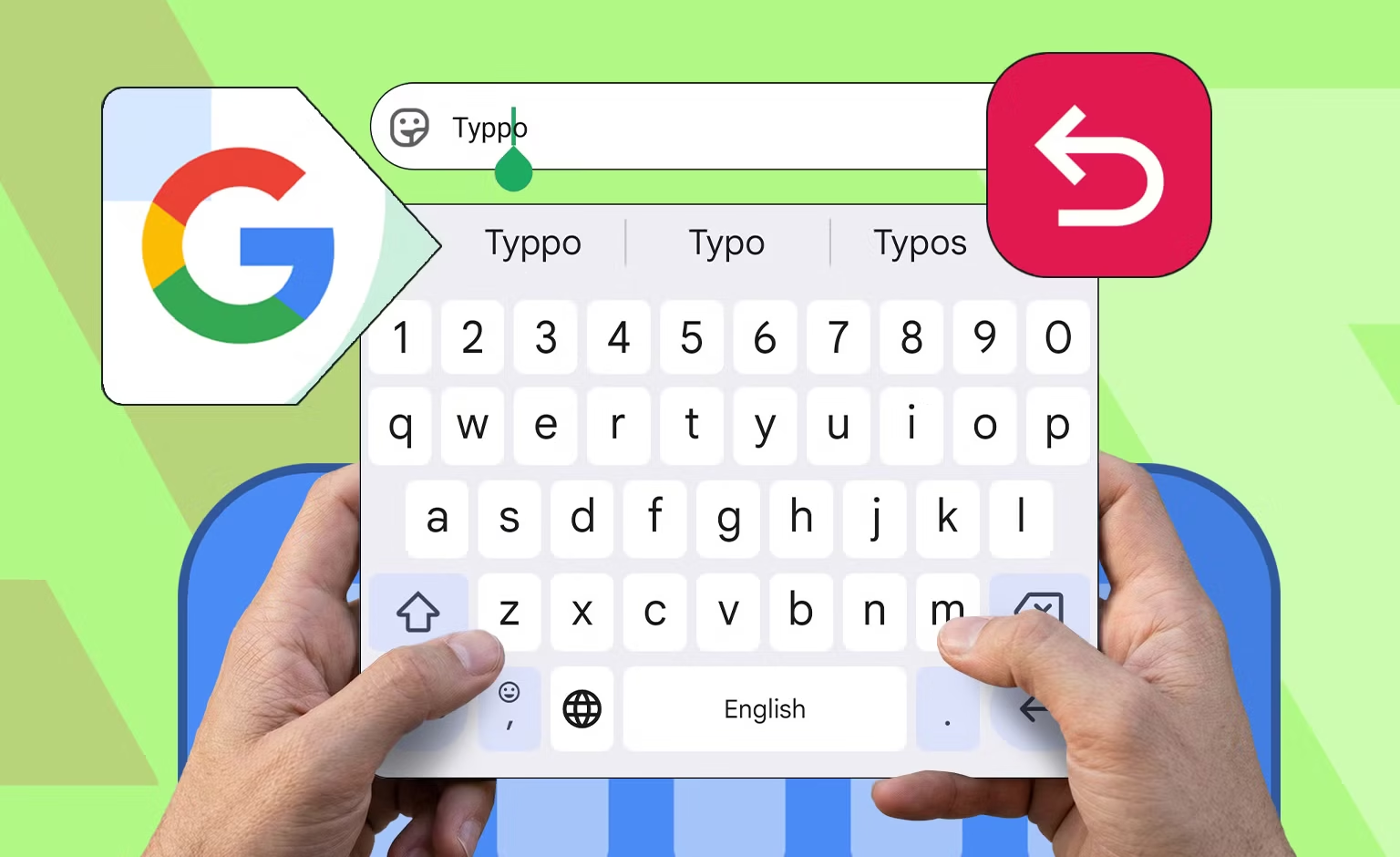
Typing on a smartphone has become much smarter and faster thanks to modern keyboard apps. Gboard, Google’s official keyboard, is one of the most popular choices for Android and iPhone users. It offers powerful features like voice typing, multilingual support, emoji suggestions, GIF search, clipboard management, and built-in Google Search.
If you’re new to Gboard or want to make the most of its features in 2026, this guide will walk you through everything you need to know.
What Is Gboard Keyboard?
Gboard is Google’s official virtual keyboard designed for smartphones and tablets. It helps users type faster and more accurately while offering smart features that go beyond a traditional keyboard.
Millions of people use Gboard every day because of its speed, reliability, and easy customization.
Who Uses Gboard?
• Android users
• iPhone users
• Students
• Business professionals
• Social media users
• Gamers
• Content creators
Why Is Gboard Popular?
• Fast typing
• Smart autocorrect
• Voice typing
• Built-in Google Search
• Emoji and GIF support
• Multiple language support
Key Features of Gboard
Gboard includes many useful tools that improve your typing experience.
Main Features
• Glide (swipe) typing
• Voice typing
• Smart autocorrect
• Emoji Kitchen
• GIF and sticker search
• Clipboard manager
• Built-in Google Translate
• Multiple language support
• One-handed mode
• Theme customization
• Text prediction
• Number row option
How to Install Gboard
Installing Gboard is simple.
For Android
• Open Google Play Store
• Search for Gboard
• Tap Install
• Wait for installation
• Open the app
For iPhone
• Open the App Store
• Search for Gboard
• Download the app
• Allow installation
How to Set Gboard as Default Keyboard
After installing the app:
Android
• Open Settings
• Tap System
• Select Languages & Input
• Open On-screen Keyboard
• Choose Gboard
• Set it as default
iPhone
• Open Settings
• Tap General
• Open Keyboard
• Select Keyboards
• Add Gboard
• Allow Full Access (optional for additional features)
• Select Gboard as your default keyboard
Now every app will use Gboard.
How to Type Faster with Gboard
One of Gboard’s biggest advantages is speed.
Tips
• Use Glide Typing by sliding your finger across letters.
• Enable word predictions.
• Turn on autocorrect.
• Use shortcuts for commonly used phrases.
• Keep your dictionary updated.
These features help reduce typing time.
How to Use Voice Typing
Voice typing lets you speak instead of typing.
Steps
• Open any messaging app.
• Tap the microphone icon on Gboard.
• Speak clearly.
• Wait for your speech to appear as text.
• Review and send.
Voice typing is useful for long messages.
How to Use Emoji Kitchen
Emoji Kitchen lets you combine emojis into creative stickers.
Steps
• Open the emoji keyboard.
• Select one emoji.
• Choose another compatible emoji.
• Pick one of the generated combinations.
This feature makes conversations more fun.
How to Search GIFs and Stickers
Gboard includes a built-in GIF search.
Steps
• Tap the GIF icon.
• Search for a keyword.
• Choose your favorite GIF.
• Send it instantly.
The same process works for stickers.
How to Translate Text
Gboard has a built-in translator.
Steps
• Tap the Translate icon.
• Select your languages.
• Type your message.
• Gboard automatically translates it.
This is useful when chatting with people from different countries.
How to Use Clipboard
Clipboard stores copied text temporarily.
Steps
• Tap Clipboard.
• Enable Clipboard.
• Copy text from anywhere.
• Open Clipboard.
• Paste saved text.
You can also pin important copied items.
How to Change Gboard Theme
Personalize your keyboard.
Available Options
• Light themes
• Dark themes
• Color themes
• Custom wallpapers
• Rounded keys
Choose the design that suits your style.
How to Add Multiple Languages
Gboard supports hundreds of languages.
Steps
• Open Gboard Settings.
• Tap Languages.
• Select Add Keyboard.
• Choose your preferred language.
• Download if required.
You can switch languages instantly while typing.
Best Gboard Settings to Enable
For better performance, turn on:
• Glide Typing
• Voice Typing
• Emoji Suggestions
• Auto Capitalization
• Auto Correction
• Spell Check
• Number Row
• Long Press Symbols
These settings improve your typing experience.
Benefits of Using Gboard
Main Benefits
• Faster typing
• Better accuracy
• Supports multiple languages
• Built-in translation
• Easy voice typing
• Custom themes
Quick Benefits
• Saves time
• Improves productivity
• Better communication
• Works across most apps
Latest Gboard Improvements in 2026
Google continues improving Gboard.
New Features
• Smarter AI text predictions
• Better multilingual typing
• Improved voice recognition
• Faster emoji suggestions
• Enhanced clipboard tools
• Better privacy controls
• Improved gesture typing
These updates make Gboard even more useful.
Pros of Gboard
| Pros | Description |
|---|---|
| Easy to Use | Simple interface suitable for everyone |
| Fast Typing | Swipe and prediction improve speed |
| Voice Typing | Speak instead of typing |
| Multiple Languages | Supports hundreds of languages |
| Customization | Themes and layouts available |
| Free to Use | No subscription required |
Cons of Gboard
| Cons | Description |
|---|---|
| Internet for Some Features | Translation and search require internet |
| Uses Storage | Additional languages take space |
| Learning Curve | Some advanced features need practice |
| Battery Usage | Voice typing can consume more battery |
| Permissions Required | Needs microphone access for voice input |
Alternatives to Gboard
| Alternative | Description |
|---|---|
| Microsoft SwiftKey | Known for powerful predictions and customization |
| Samsung Keyboard | Built into Samsung Galaxy devices |
| Apple Keyboard | Default keyboard for iPhone and iPad |
| Grammarly Keyboard | Focuses on grammar and writing improvements |
| Fleksy Keyboard | Designed for fast typing and customization |
Common Mistakes to Avoid
Avoid these mistakes for the best experience.
• Not updating Gboard regularly
• Disabling autocorrect without reason
• Ignoring language settings
• Forgetting to back up your personal dictionary
• Giving unnecessary permissions to unofficial keyboard apps
• Using outdated versions
Why You Should Use Gboard
Gboard is an excellent choice because it combines speed, accuracy, and powerful features into one free keyboard. Whether you’re sending messages, writing emails, searching the web, or creating social media posts, it helps you type more efficiently.
It is suitable for:
• Students
• Professionals
• Travelers
• Gamers
• Content creators
• Everyday smartphone users
Is Gboard Safe?
Yes. Gboard is developed by Google and is considered one of the most trusted keyboard apps available. It includes privacy controls and allows users to manage permissions such as microphone access for voice typing. Always download Gboard from your device’s official app store and keep it updated for the latest security improvements.
Final Thoughts
Learning how to use the Gboard Keyboard on your phone in 2026 can make everyday typing faster, easier, and more enjoyable. With features like swipe typing, voice input, emoji suggestions, built-in translation, and customizable themes, Gboard is much more than a basic keyboard.
Spend a little time exploring its settings, and you’ll discover tools that can significantly improve your mobile typing experience.
Android App
Disclaimer
This article is for informational purposes only. Features and settings may vary depending on your device model, operating system, and the latest version of the Gboard app. Always download apps from official app stores for the safest experience.