
Introduction
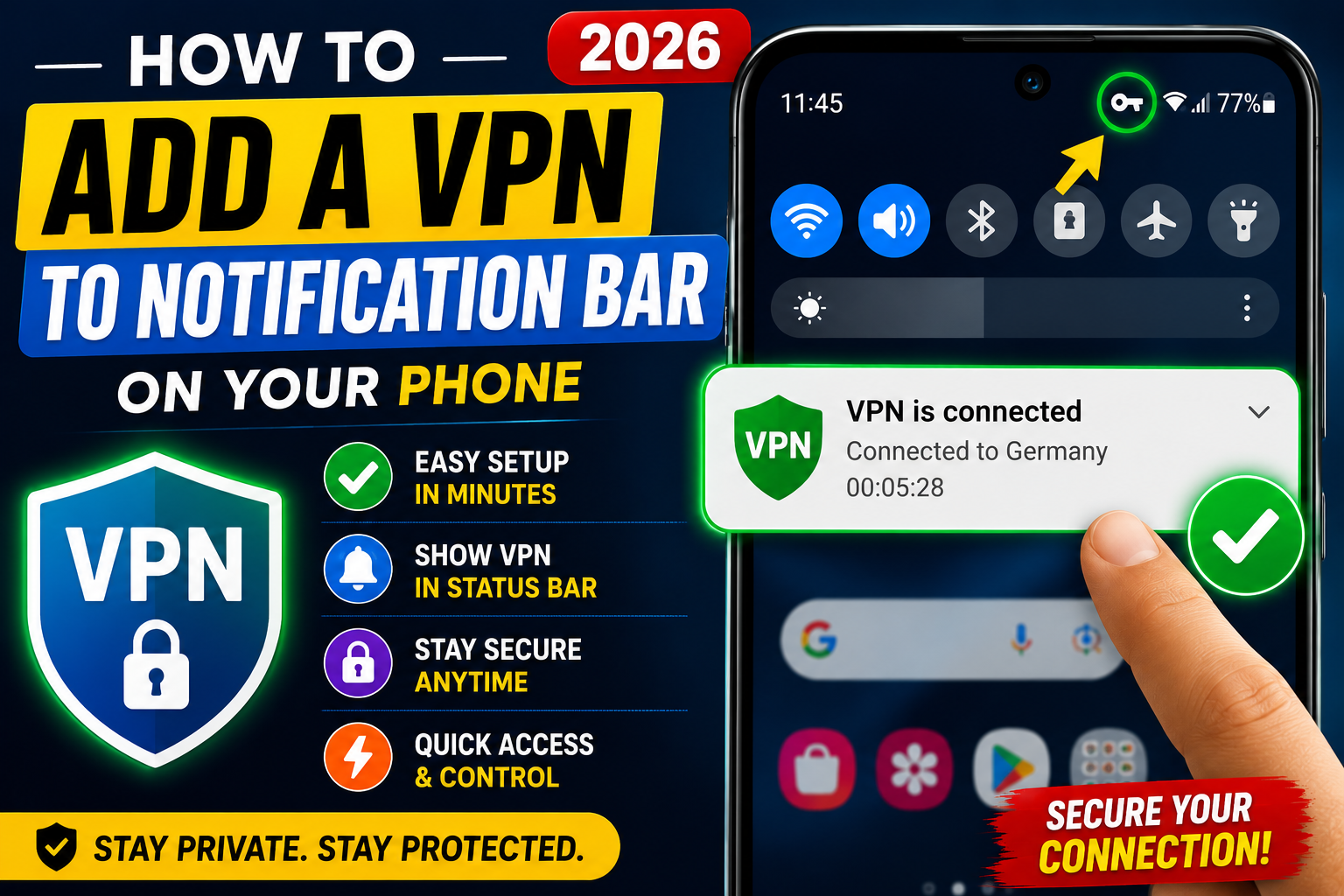
A VPN (Virtual Private Network) helps protect your online privacy by encrypting your internet connection and hiding your IP address. Many Android phones display a VPN icon or persistent notification whenever a VPN is connected. This makes it easy to confirm that your VPN is active and secure.
In this guide, you’ll learn how to add a VPN to your phone, understand the VPN notification, and customize its appearance where your device allows.
What Is a VPN Notification?
A VPN notification is a system notification shown when your VPN is connected. It indicates that your internet traffic is being routed through a secure VPN server.
The notification may display:
• VPN connected
• Server location
• Connection duration
• VPN app name
• Connection status
This notification helps users know that their VPN is working.
Why Use a VPN on Your Phone?
A VPN offers several benefits for mobile users.
Main Reasons
• Protects your online privacy
• Encrypts internet traffic
• Helps secure public Wi-Fi connections
• Hides your IP address
• Prevents some forms of tracking
• Provides a safer browsing experience
Key Features of Modern VPN Apps
Today’s VPN apps include many useful features.
Main Features
• One-tap connection
• Multiple server locations
• Automatic reconnect
• Kill Switch (on supported apps)
• Split tunneling
• Fast connection speeds
• Secure encryption
• Auto-connect on Wi-Fi
How to Add a VPN to the Notification Bar
Step 1: Install a Trusted VPN App
Download a reputable VPN app from your phone’s official app store.
Before installing:
• Read user reviews
• Check privacy policies
• Review requested permissions
• Download only from trusted sources
Step 2: Open the VPN App
Launch the app and create an account if required.
Some VPNs also allow limited free access without registration.
Step 3: Grant Required Permissions
The first time you connect, Android or iPhone may ask for VPN permission.
Tap:
• Allow
• OK
• Continue
This permission is necessary for the VPN to establish a secure connection.
Step 4: Connect to a Server
Choose a server location and tap Connect.
Once connected:
• A VPN icon usually appears in the status bar.
• A persistent VPN notification appears in the notification panel.
This confirms the VPN is active.
Step 5: Check the Notification Panel
Swipe down from the top of your screen.
You should see:
• VPN connected
• VPN app name
• Active connection status
• Optional quick controls (depending on the app)
How to Pin or Access the VPN Quickly
Some Android devices let you make VPN access more convenient.
Depending on your phone model and VPN app, you may be able to:
• Add a VPN quick settings tile
• Keep the notification expanded
• Use a home screen widget
• Enable Always-on VPN in settings
These options vary by device manufacturer and Android version.
Can You Hide the VPN Notification?
This depends on your device and VPN app.
Some Android phones allow limited notification customization, while others require the VPN notification to remain visible because it indicates an active system service.
If your device supports notification controls, you may be able to:
• Minimize the notification
• Disable sound or vibration
• Reduce notification priority
On many devices, however, the active VPN notification cannot be completely hidden while the VPN is connected.
Benefits of Keeping the VPN Notification
Although some users prefer a cleaner notification panel, keeping the VPN notification visible has advantages.
Benefits
• Confirms the VPN is connected
• Alerts you if the VPN disconnects
• Makes it easy to disconnect quickly
• Helps verify secure browsing
• Prevents accidental browsing without protection
Latest VPN Features in 2026
Modern VPN apps now include:
• Faster VPN protocols
• AI-assisted server selection
• Better battery optimization
• Improved connection stability
• Automatic threat detection
• Smarter split tunneling
• Enhanced privacy settings
These improvements make VPNs easier and more efficient to use.
Pros of Using a VPN
| Pros | Description |
|---|---|
| Better Privacy | Helps protect your online activity |
| Secure Browsing | Encrypts internet traffic |
| Easy to Use | Most apps connect with one tap |
| Public Wi-Fi Protection | Adds security on shared networks |
| Wide Server Selection | Choose from many locations |
| Quick Connection | Fast setup on most devices |
Cons of Using a VPN
| Cons | Description |
|---|---|
| Slight Speed Reduction | Encryption may reduce speed slightly |
| Battery Usage | Long sessions may use more battery |
| Premium Features | Some VPNs require a subscription |
| Notification Stays Visible | Many devices show a persistent VPN notification |
| Server Availability | Free plans may have limited servers |
Common Mistakes to Avoid
Avoid these common mistakes.
• Downloading unknown VPN apps
• Ignoring privacy policies
• Forgetting to update the VPN app
• Using unsecured public Wi-Fi without a VPN
• Disabling important security features
• Assuming all free VPNs provide the same level of privacy
Is It Worth Using a VPN?
For most users, yes. A trusted VPN adds an extra layer of security, especially when using public Wi-Fi or browsing on mobile networks. While it may slightly reduce connection speed and display a persistent notification, the added privacy and security often make it worthwhile.
One of the Best VPN Apps: Proton VPN
If you’re looking for a reliable VPN, Proton VPN is one of the best options available in 2026. It is known for its strong privacy features, fast connection speeds, and easy-to-use interface. Proton VPN offers both free and premium plans, making it a good choice for beginners as well as advanced users. It follows a strict no-logs policy and uses strong encryption to help protect your online activity. To get started, simply install the Proton VPN app from your phone’s official app store, sign in or create a free account, select a server location, and tap Connect. Once connected, the VPN icon and notification will automatically appear in your phone’s notification bar, showing that your internet connection is secure.
Final Thoughts
Learning how to add a VPN to the notification bar on your phone is straightforward. After installing a trusted VPN, granting permission, and connecting to a server, Android or iPhone will usually display a VPN indicator and notification automatically. This notification helps you confirm that your secure connection is active.
Choose a reputable VPN provider, keep the app updated, and use the notification as a quick way to monitor your connection status.
Disclaimer
This article is for informational purposes only. Features related to VPN notifications and quick settings may vary depending on your phone model, operating system version, and the VPN application you use.




Ashna
Ppppppppppppppp
Good
Assalamoalikum
notifications